TLDR;
Step1: obtain an public SSH key (either one stored in your password manager or local machine, or generate a new one)
Step2: login normally with username/password for the first time:
ssh -p 2222 admin@example.com.auStep3: edit
~/.ssh/authorised_keysfile on the server to add the public key obtained in step1Step4: edit
~/.ssh/configon your local machine
(if you are using 1Password SSH Key Agent:
1
2
3
4
5
Host example.com.au HostName example.com.au Port 2222 User example_user IdentityAgent "~/Library/Group Containers/XXXXXXXXXXX.com.1password/t/agent.sock"(if you are using your locally stored ssh key:
1
2
3
4
5
6
Host example.com.au HostName example.com.au # The real domain or IP of the remote server Port 2222 # Custom SSH port User example_user # Remote username IdentityFile ~/.ssh/id_rsa_cpanel # Path to your private key IdentitiesOnly yes # Ensures only this key is used for autStep5: attempt to login using SSH (without username/password)
ssh example.com.au(if you are still being prompted for password, find the~/.ssh/known_hostsfile on your localhost and delete the line that contains your domainexample.com.auand try again)
(Optional) Generate SSH Key
If you do not have SSH (Public+Private) key pair, you can generate it via the following command:
| |
Alternatively if you happen to already have a private key, but does not have a public key in hand, you can generate the public key based on the private key:
| |
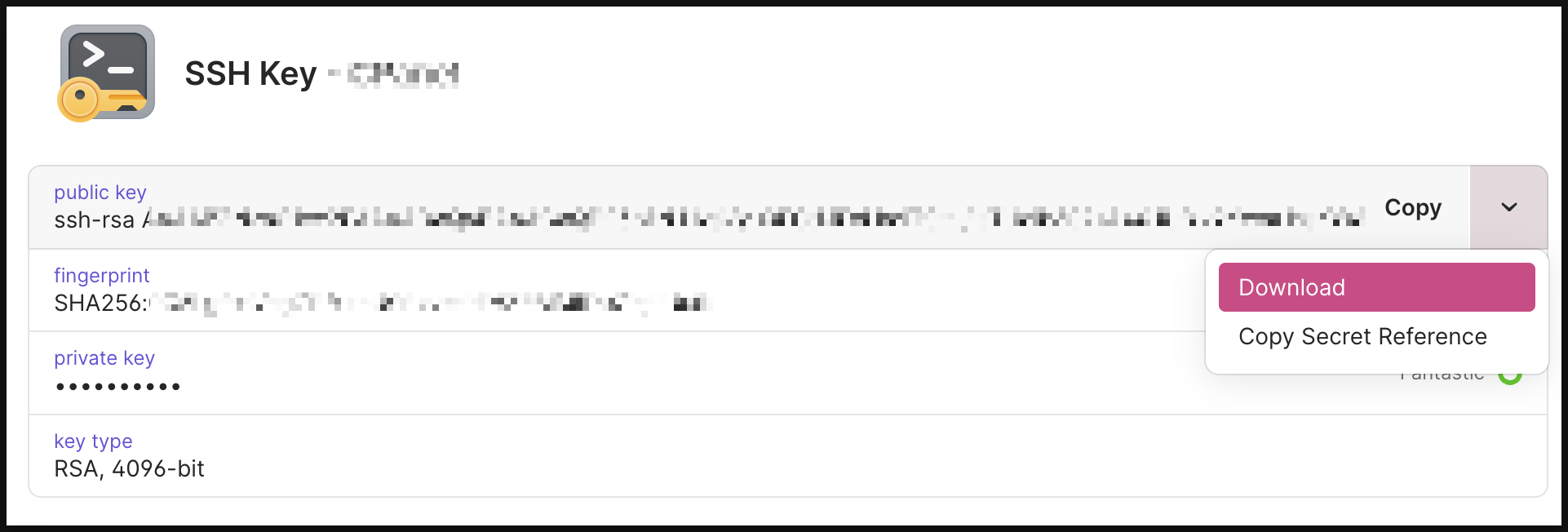
(If you happen to already have public/private key stored in 1Password, then you can download the private key via hovering the down chevron and click on “Download”, (naming doesn’t really matter):
Install SSH Public Key to Server
Method-1: Using ssh-copy-id command
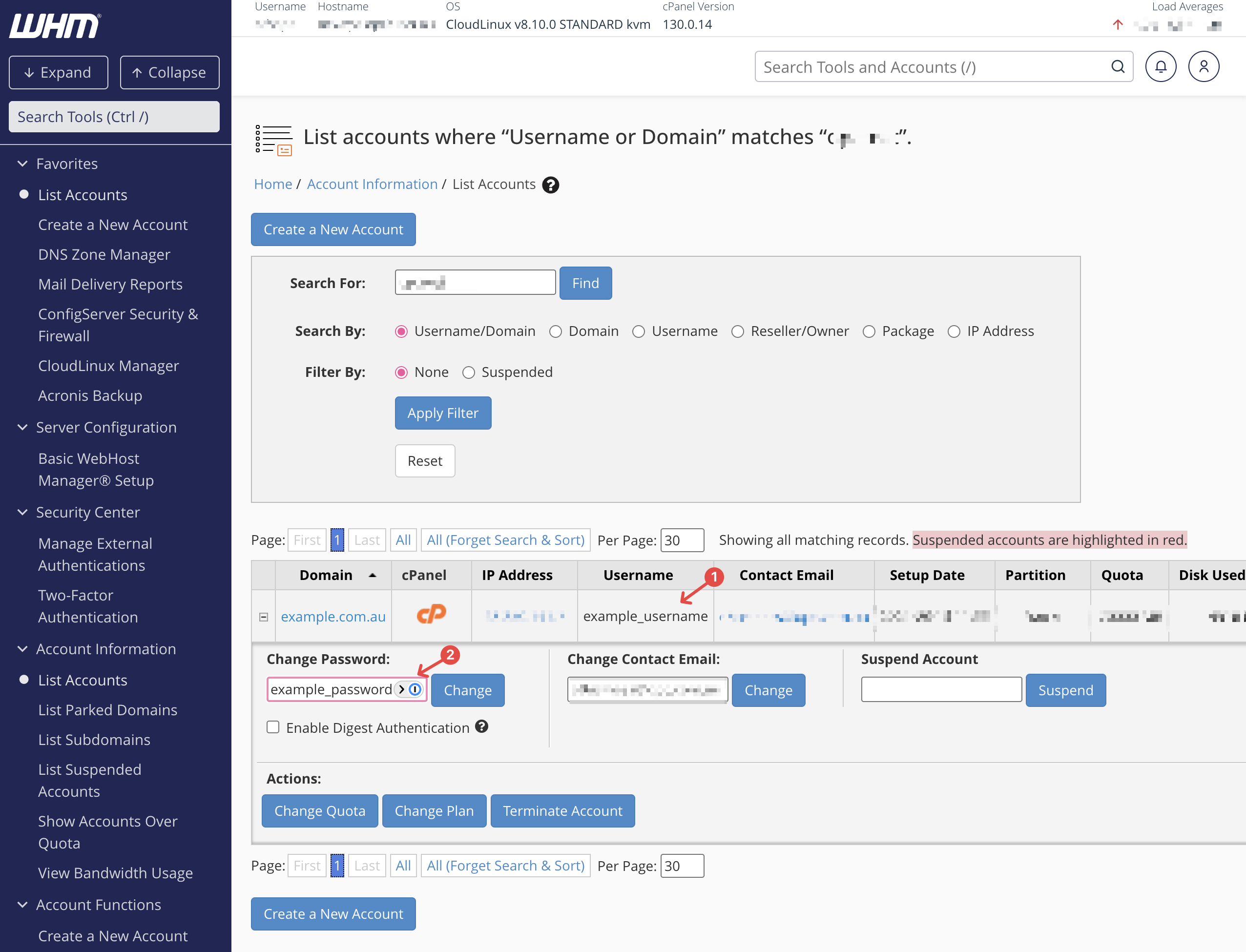
Before you proceed with the next command, you will need to know username & password, if you happen to be using WHM/CPanel, this can be found in the “List Account” page, you can override/reset the password if you forgot the existing one:
Then run the following ssh-copy-id command will install your nominated public SSH key onto the remote server, in our case it is a CPanel server:
| |
Method-2: Manually add to ~/.ssh/authorized_keys file
First create this file (and parent directory) if it doesn’t exists:
- if no
~/.sshdirecotry then create it usingcd ~ && mkdir .ssh - if no
~/.ssh/authorized_keysfile then create it usingcd ~/.ssh && touch authorized_keys
Then append your public key to the ~/.ssh/authorized_keys file:
echo "ssh-rsa AAAAB3NzaC1yc2EAAAADA...47Lcoae8FEoNQ==" >> authorized_keys
Connecting to SSH Session - Manual
After running the ssh-copy-id to install the public key to host, you will be able to login the host (CPanel server) via SSH Key without then need of typing a password. This is known as key-based ssh authentication:
| |
Connecting to SSH Session - Automatic
If you do not want to enter the username, port-number, specify the private key every time, you can define a host alias and configure its setting in ~/.ssh/config file:
| |
Then the connection command can be much simpler:
| |
Connecting to SSH Session - via 1Password SSH Agent
For those user using 1Password to store the SSH public/private key, after proper configuration outlined at “1Password SSH agent”. The agent will be available to automatically fill-in the private key when you starts SSH session.
- Declare SSH Key in
/.config/1Password/ssh/agent.tomlfile:
| |
- Alter
~/.ssh/configfile to use 1Password SSH Agent:
| |
| |
- Retry connecting to the
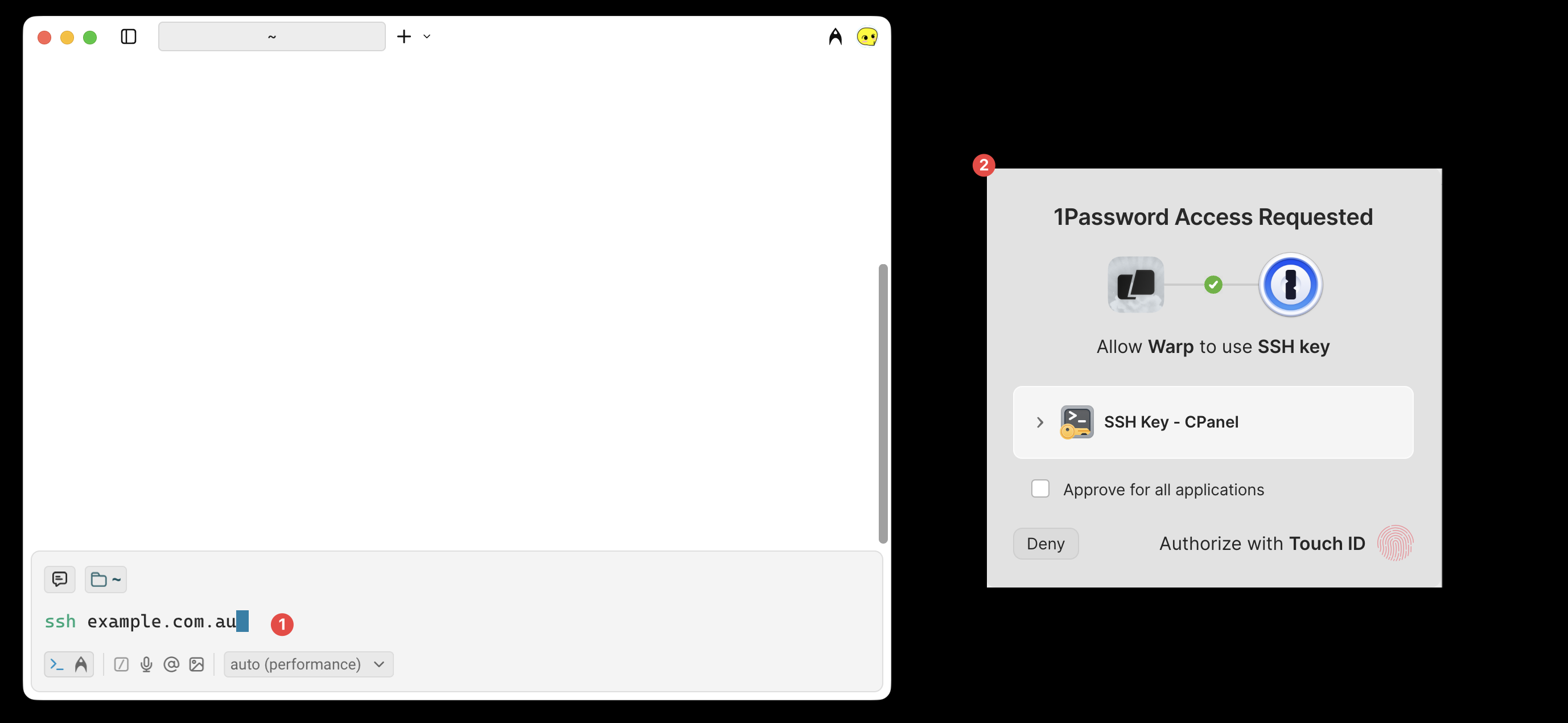
example.com.auserver via ssh again: you will now be prompted to unlock your 1Password (either via password or bio-identity depending on setting) to use SSH key for the key-based authentication:
(optional) if you are still being prompted for entering password (e.g.
example@example.com.au password) look for the~/.ssh/known_hostsfile on your localhost, and delete the line relating to your logging in domain and try again:1 2> ssh example@example.com.au Please enter password for example@example.com.au: ...1 2 3 4 5 6> nvim ~/.ssh/known_hosts [example-1.com.au]:2222 ssh-rsa XXXXXXXXXXXXXXXXXX........... [example-2.com.au]:2222 ssh-rsa XXXXXXXXXXXXXXXXXX........... [example-3.com.au]:2222 ssh-rsa XXXXXXXXXXXXXXXXXX........... [example-4.com.au]:2222 ssh-rsa XXXXXXXXXXXXXXXXXX........... - [example.com.au]:2222 ssh-ed25519 AAAAC3NzaC1lZDI1...........1 2 3 4 5 6> ssh example@example.com.au The authenticity of host '[example.com.au]:2222 ([???.???.????.???]:2222)' can't be established. ED25519 key fingerprint is SHA256:rD6skC.... Are you sure you want to continue connecting (yes/no/[fingerprint])? yes Warning: Permanently added '[example.com.au]:2222' (ED25519) to the list of known hosts. bash-4.4$