DEMO: using Google Maps AutoComplete to auto-fill street, suburb, state, postal cost upon search.

Method-1: via Webform JavaScript
As of March 1st, 2025,
google.maps.places.Autocompleteis not available to new customers. Although this API is not scheduled to be discontinued, butgoogle.maps.places.PlaceAutocompleteElementis recommended overgoogle.maps.places.Autocomplete.
Method-1a: via google.maps.places.PlaceAutocompleteElement
- Create any field that will later be replaced with the PlaceAutocompleteElement, here I’ll create a search field to showcase, see screenshot
- For all the address related fields (e.g. street, suburb, city, country) add custom element CSS classes respectively to be later used by JavaScript to fill their values, see screenshot
- Add the following JavaScript to the Webform’s settings: demo-autocompelte-using-PlaceAutocompleteElement.js (Replace
API_KEYon the bottom of the file with your Google Maps API key) - Review the outcome of step1 to step3: outcome-gif (if your API key is invalid you’ll get the following warning as you start typing in the address:
Google Maps JavaScript API warning: InvalidKeyin your console)


Method-1b: via google.maps.places.Autocomplete (deprecated)
Create a plain text field in webform to use as the “search field” for address, see screenshotFor all the fields relating to address add custom class to be used later by JavaScript (here is an example: screenshot of add.webform-xx-street1class to the field “Street1”)Add the following JavaScript (at Webform > Settings > CSS/JS) that uses Google Place API to fill address: demo-auto-complete.js (*alternatively if you don’t want to expose your API in the webform Drupal backend settings, you can also include the Place API via Drupal library: your-theme-name.libraries.yml, page–webform.html.twig; Here’s a full example webform that uses this approach: webform-export-yaml-file and where-to-past-it-to-screenshot)Review the outcome of step1 to step3: outcome-gif (if your API key is invalid you might see your search box turn grey (invalid) and get the following error in your console:Failed to load resource: the server responded with a status of 403 ), see screenshot: sample-console-error-api-invalid)You can go one step further and have multiple pairs of “search + street/city/state/post input” as well, see the demo javascript file: auto-complete-multiple-input.js, and here’s the final outcome: multiple-autocomplete-example


)


Method-2: via Contributed Modules
install Webform Address Autocomplete module (link) via:
composer require 'drupal/webform_address_autocomplete:^1.0'enable the module via
drush pm:install webform_address_autocompleteconfigure the Webform Address Autocomplete module by adding Google Place API key:
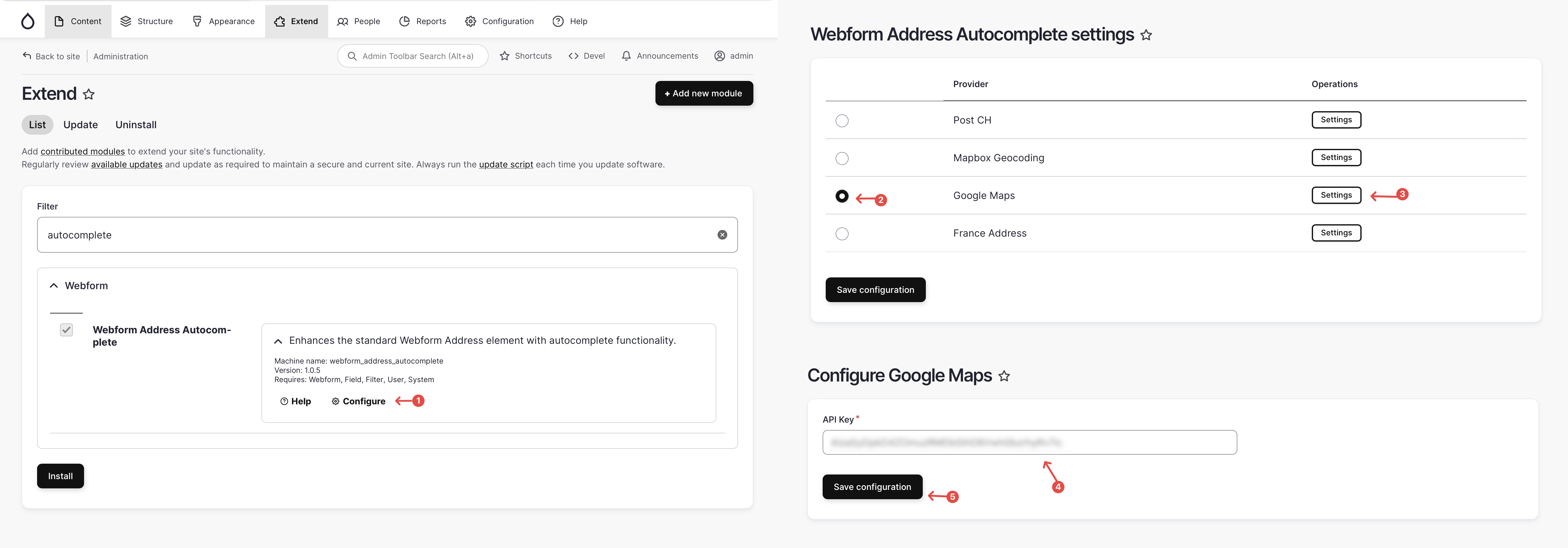
(you can follow the instruction in the upcoming section to get your Google Place API key)
Find the extra Webform “Address autocomplete” element under “Advanced elements”, and add it to the webform (and delete the original address field if required):
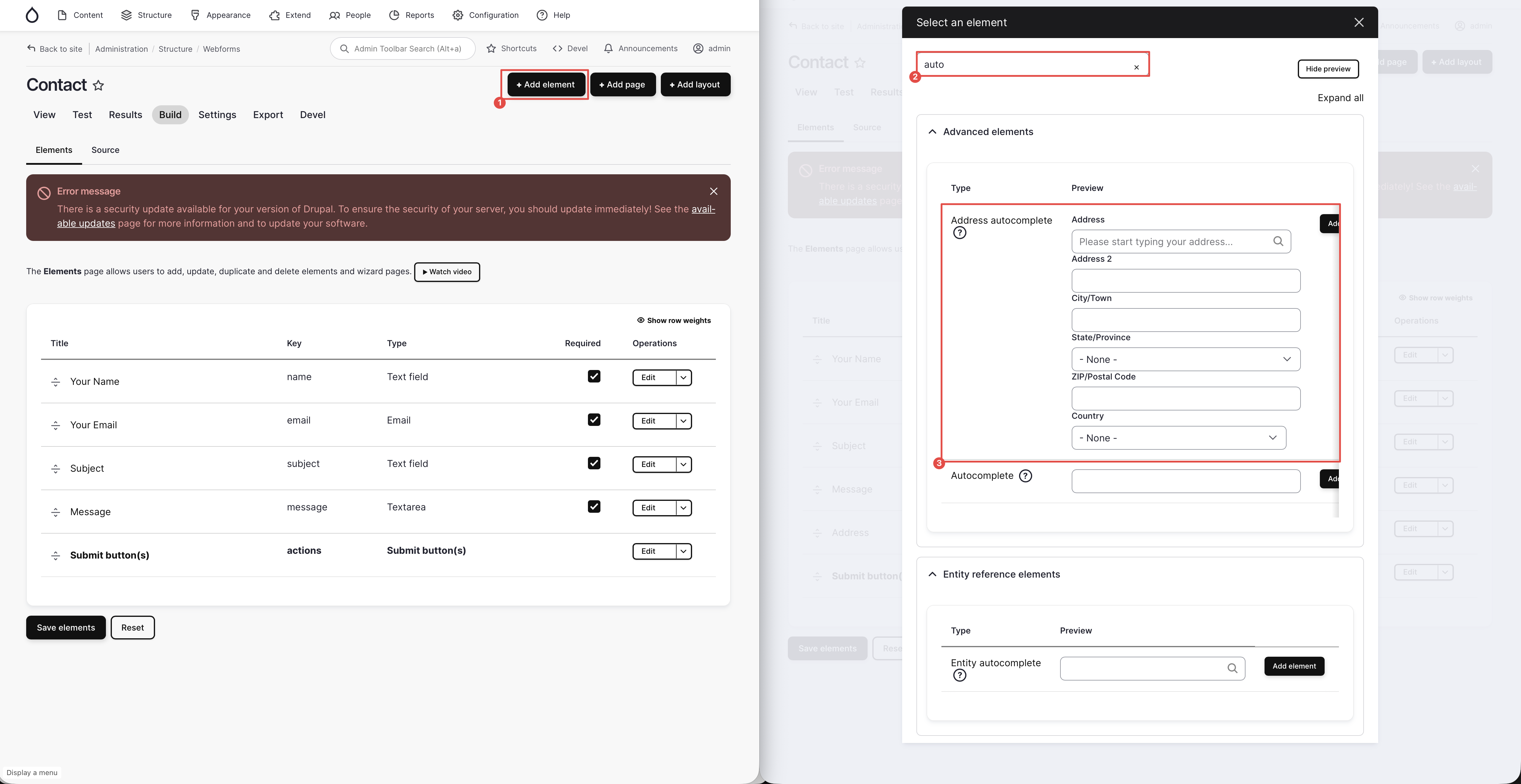
trying out entering address in the new address autocomplete field, and use the drop down menu to select the matching result:
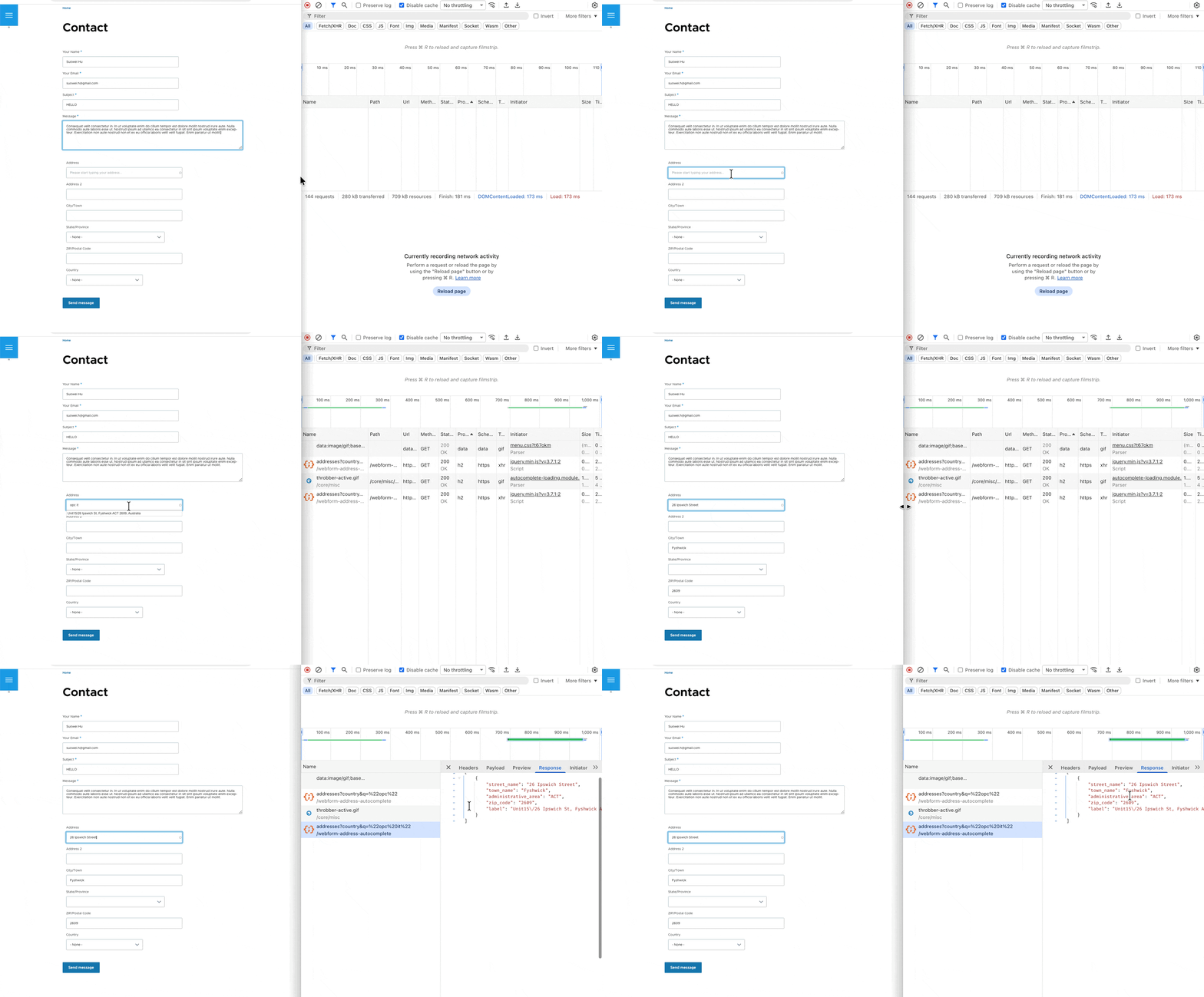
(* If the auto-complete doesn’t work, open F12 developer tool network panel, and check if the response of the
/addresses?q=...request is empty (see: screenshot). If yes, this is likely because your API key is invalid, potentially it can be caused if you don’t have a billing card bound to the account.)
)
Method-2: via Custom Module/Theme
(I have NOT attempted to build a demo of this approach myself, but I think this is also a worth exploring option for some plug and play scenario)
file: my_module_or_theme.libraries.yml
| |
file: js/custom-google-places-webform.js
| |
file: my_module_or_theme.module
| |
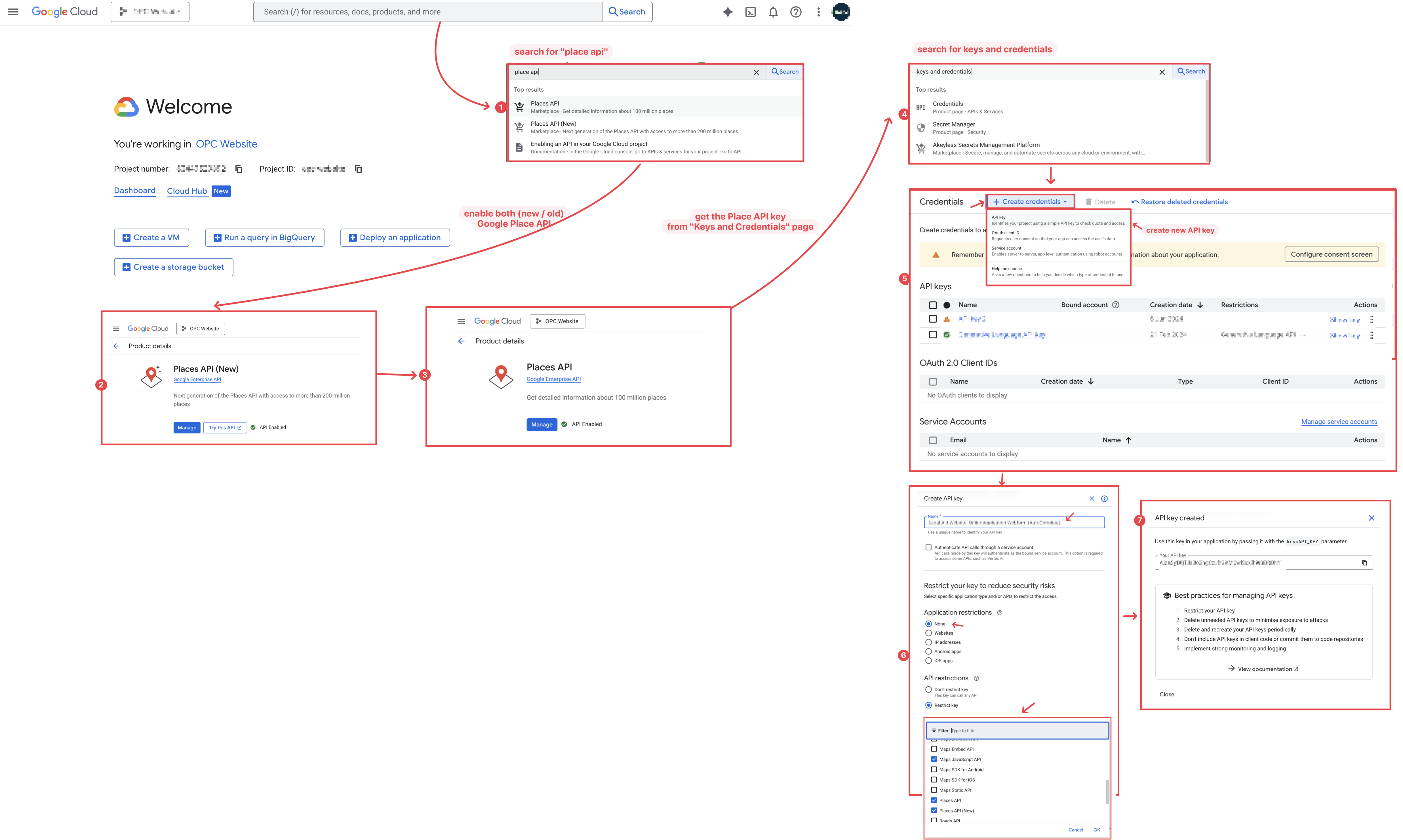
(*misc) How to Get Your Google Place API Key
You can find your Google Place API key via the following steps:
- start at Google Cloud Console home page
- search “Place API” and enable both options
- search “Credentials” to go to “Keys and Credentials” page, and copy your API keys there (or create one using the “+ Create Credentials” button on the top, and restrict it to the only have access to the Place APIs + Maps JavaScript API, see screenshot: link)

To find existing API key:
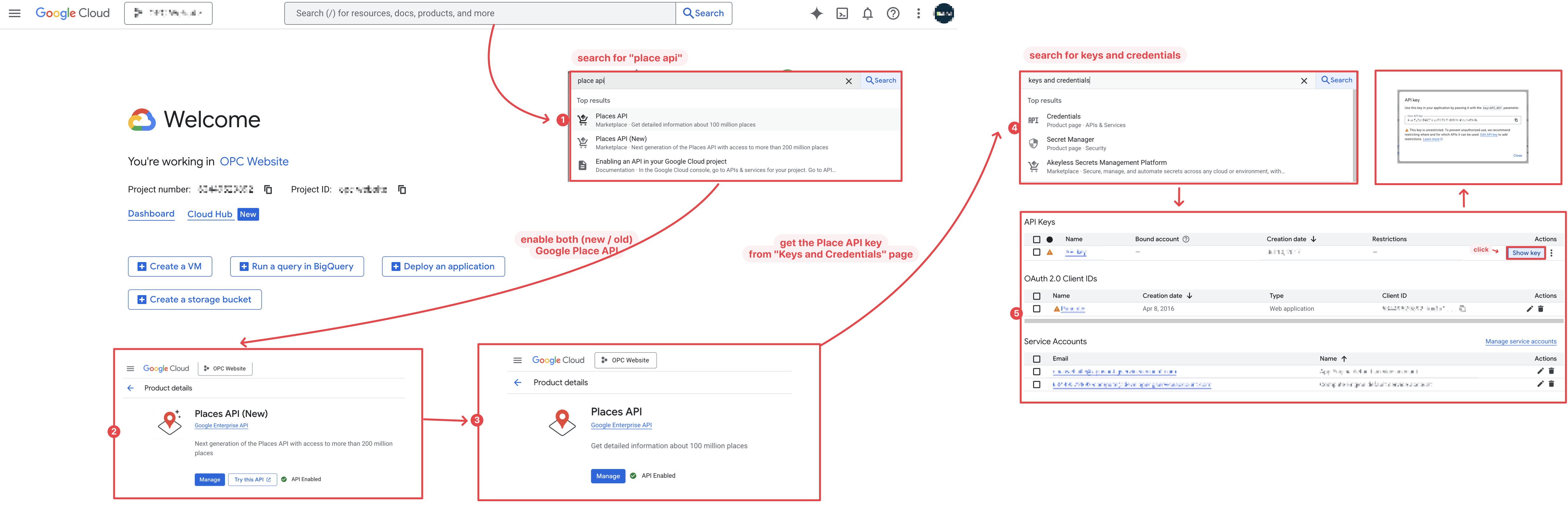
To create a new API key:
Reference
Method-1a
official demonstration
use documentation regarding to this ?
place prediction API used: toPlace -> PlacePrediction.toPlace
available fields for place.fetchFields -> Place Class Data Fields
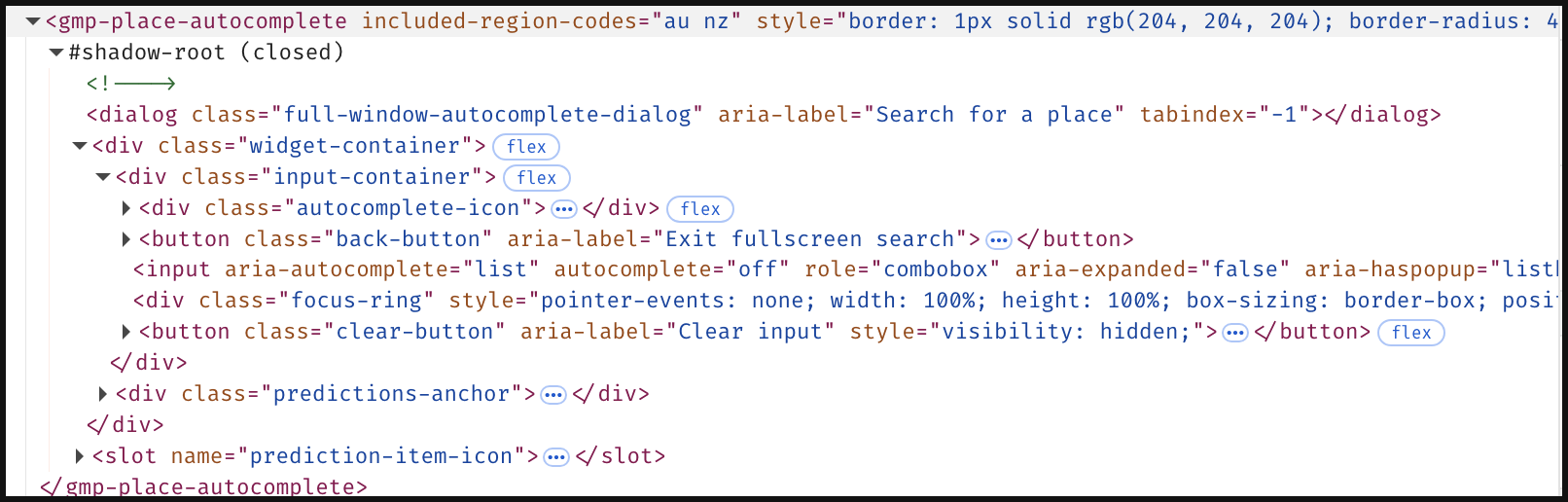
how to style the PlaceAutocompleteElement ?
Styling the parent container:
1
2
3
4
5
const placeAutocomplete = new google.maps.places.PlaceAutocompleteElement({includedRegionCodes: ['au', 'nz'],}); placeAutocomplete.style.border = "1px solid #ccc"; placeAutocomplete.style.borderRadius = "4px"; placeAutocomplete.style.height = "40px"; searchInput_Element.replaceWith(placeAutocomplete);
Method-1b(deprecated)Method-2
- webform_address_autocomplete module: https://www.drupal.org/project/webform_address_autocomplete